Laptop Battery Draining Fast? 9 Fixes for Windows 11 (2026)
Laptop battery draining fast in Windows 11? Fix battery drain — battery saver, background apps, brightness, power settings, and health check. Step-by-step.
Laptop Battery Draining Fast? 9 Fixes for Windows 11 (2026)
Battery that used to last 6 hours now dies in 2? Before blaming the battery itself — most fast drain is software: background apps, wrong power mode, or a hungry process quietly eating watts.
This guide covers the 2-minute software fixes first, then how to check if your battery is actually dying (and needs replacement).
Table of Contents
- Quick Wins First (2 Minutes)
- Fix 1: Battery Saver Mode
- Fix 2: Find Battery-Hungry Apps
- Fix 3: Kill Background Apps
- Fix 4: Screen Brightness (Biggest Drain)
- Fix 5: Power Mode & Plan Settings
- Fix 6: Sleep vs Hibernate Setup
- Fix 7: Peripherals & Connections
- Fix 8: Check Battery Health (Is It Dying?)
- Fix 9: Update + BIOS
- Frequently Asked Questions
- Conclusion
Quick Wins First (2 Minutes)
- ✅ Lower brightness to ~60%
- ✅ Turn off keyboard backlight when not needed
- ✅ Unplug USB devices you're not using
- ✅ Close Chrome tabs — 30+ tabs drain real battery
Fix 1: Battery Saver Mode
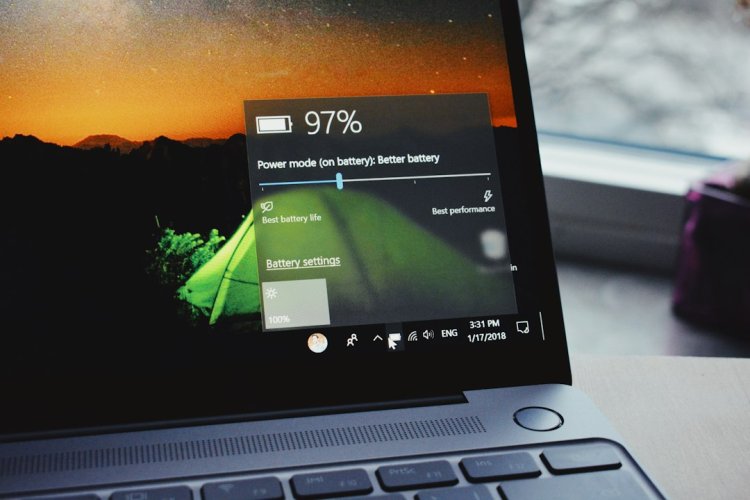
Quick Settings (Win + A) → Battery Saver → turns on automatically under 20% — or enable now. Cuts background activity and brightness automatically.
Fix 2: Find Battery-Hungry Apps
Settings → System → Power & battery → Battery usage
Shows exactly which apps ate the battery in the last 24h/7 days — Chrome, games, and video apps top the list. The culprit is usually obvious here.
Hindi: Settings mein Battery usage dekho — kaunsa app sabse zyada battery kha raha hai saaf dikhega. Us app ko band ya limit karo.
Fix 3: Kill Background Apps
Background apps sip battery all day:
- Settings → Apps → Installed apps → find heavy apps
- ⋮ → Advanced options → Background app permissions → Never
- Task Manager → Startup apps → disable ones you don't need at boot
Fix 4: Screen Brightness (Biggest Drain)
The display is the #1 power consumer:
- 100% → 60% brightness = 30-40 min extra on many laptops
- Settings → Display → enable adaptive brightness
- Dark mode saves a little on OLED screens
Fix 5: Power Mode & Plan Settings
- Settings → System → Power & battery → Power mode
- Choose "Best power efficiency" for battery work (vs "Best performance" when plugged in)
- Control Panel → Power Options → adjust plan for longer battery
Fix 6: Sleep vs Hibernate Setup
Laptop draining while closed? It's sleeping, not hibernating — sleep still sips power:
- Control Panel → Power Options → "Choose what closing the lid does"
- Set lid close → Hibernate for long gaps (saves everything, uses zero power)
- Sleep is fine for short breaks only
Fix 7: Peripherals & Connections
- Turn off Bluetooth/WiFi when unused
- External mouse/USB drives draw power — unplug
- Connected Standby keeps syncing — disable notifications waking the PC
Fix 8: Check Battery Health (Is It Dying?)
If software fixes don't help, the battery may be worn:
```cmd
powercfg /batteryreport
```
Generates a report — open battery-report.html. Compare:
- Design Capacity (what it could hold new)
- Full Charge Capacity (what it holds now)
If full capacity is under 60% of design → battery is degraded, needs replacement — no software fix helps.
Fix 9: Update + BIOS
- Windows Update — power bugs get patched
- Manufacturer BIOS updates often improve battery management
- Update GPU drivers — bad drivers cause wake/drain loops
Frequently Asked Questions
Why is my laptop battery draining so fast in Windows 11?
Usually a battery-hungry app, high brightness, or wrong power mode — check Settings → Battery usage to find the top consumer first.
How do I check my laptop battery health?
Run powercfg /batteryreport in CMD → open the HTML report → compare Full Charge Capacity vs Design Capacity. Under 60% means a worn battery.
Does battery saver mode help?
Yes — it limits background activity and reduces brightness, typically adding 30-60 minutes of runtime.
Why does my laptop battery drain when shut down?
It probably isn't fully shutting down — Windows "Fast Startup" uses hibernation hybrid, or the laptop is actually sleeping. Disable Fast Startup in Power Options.
Should I keep my laptop plugged in all the time?
For long desk sessions, yes — modern laptops stop charging at 100% (some have 80% caps in their utility apps). Heat, not charging, is what ages batteries.
laptop battery fast drain ho rahi hai kya kare?
Pehle Settings → Battery usage mein dekho kaunsa app sabse zyada kha raha hai → brightness kam karo → Battery Saver on karo → powercfg /batteryreport se battery health check karo.
Conclusion
Software first: Battery usage report → kill hungry apps → brightness → power mode. If the battery report shows worn capacity, it's hardware — replacement time, not more tweaks.
Video Tutorial:
- Check Battery Health — powercfg Report
- Windows 11 Slow Performance Fix
- PC Overheating — Fix Guide
TAGS: laptop battery draining fast, laptop battery drain fast, laptop battery draining fast windows 11, laptop battery draining fast after update, battery draining fast when not in use, laptop battery fix, battery saver windows 11, powercfg batteryreport, techn trainer
What's Your Reaction?