Keyboard Not Typing Properly? Disable Filter Keys — Windows 11/10 Fix
Keyboard keys not responding or slow to type? Filter Keys is likely ON — disable it in Settings. Windows 11/10 fix guide with all methods.
Keyboard Not Typing Properly? Disable Filter Keys — Windows 11/10 Fix
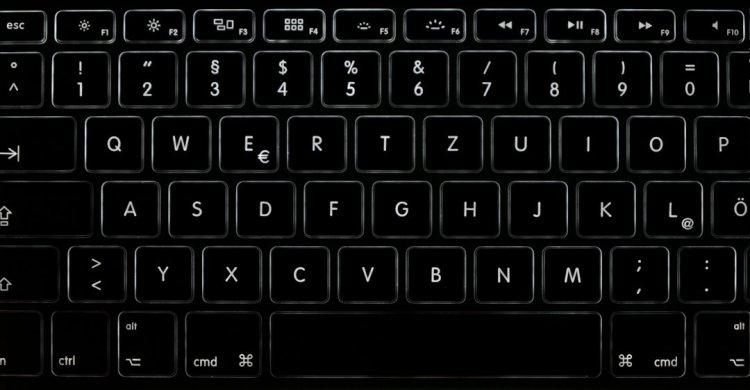
Keys missing letters, keyboard responding slowly, or ignoring quick presses? The culprit is often Filter Keys — an accessibility feature that ignores fast keystrokes, accidentally turned on by holding Shift for 8 seconds.
This guide shows how to disable it and every related keyboard fix.
Table of Contents
- What Is Filter Keys?
- Fix 1: Turn Off Filter Keys (Settings)
- Fix 2: Shift Shortcut Toggle
- Fix 3: Disable the Shortcut Itself
- Other Keyboard Fixes If Not Filter Keys
- Frequently Asked Questions
- Conclusion
What Is Filter Keys?
An accessibility feature that ignores brief or repeated keystrokes — meant for users with tremors, but a nightmare when accidentally enabled. Your fast typing gets "filtered" out.
Hindi: Filter Keys ON hone se fast typing ke letters miss ho jate hain — Windows ko lagta hai wo galti se dabaye. OFF karne se keyboard normal ho jata hai.
Fix 1: Turn Off Filter Keys (Settings) ⭐
Windows 11:
- Win + I → Settings
- Accessibility → Keyboard
- Toggle Filter Keys → OFF
Windows 10:
Settings → Ease of Access → Keyboard → Filter Keys OFF
Test typing immediately — keys should respond normally.
Fix 2: Shift Shortcut Toggle
Filter Keys turns ON when you hold Right Shift for 8 seconds:
- Hold Right Shift 8 seconds → beep → Filter Keys prompt
- Click No/Decline — stays off
This is exactly how it got enabled by accident — kids holding keys, leaning on the keyboard, or gaming.
Fix 3: Disable the Shortcut Itself
Stop it from accidentally re-enabling:
- Settings → Accessibility → Keyboard
- Click Filter Keys (the row, not just toggle)
- Turn OFF "Keyboard shortcut for Filter keys"
Now holding Shift can't trigger it again.
Other Keyboard Fixes If Not Filter Keys
- Sticky Keys (5× Shift) — makes modifier keys latch; turn off in same menu
- Slow Keys — delays before letter registers; also in Keyboard settings
- Reconnect/re-seat USB keyboard or try another USB port
- Device Manager → Keyboards → update driver
- Laptop keys dead but external works → hardware/ribbon issue
Frequently Asked Questions
Why is my keyboard not typing properly in Windows 11?
Most often Filter Keys got enabled (holding Shift 8 sec does it) — Settings → Accessibility → Keyboard → Filter Keys OFF.
How do I turn off Filter Keys in Windows 11?
Settings → Accessibility → Keyboard → toggle Filter Keys OFF.
Why does Filter Keys keep turning on?
Because of the Shift-hold shortcut — disable it inside the Filter Keys settings ("Keyboard shortcut for Filter keys" OFF).
Keyboard keys not responding at all?
If Filter Keys isn't the cause: try another USB port, another keyboard, or reinstall the driver in Device Manager.
What is the shortcut that turns on Filter Keys?
Holding Right Shift for 8 seconds — that's the accidental trigger.
Filter keys kaise band kare?
Settings → Accessibility → Keyboard → Filter Keys OFF — aur shortcut bhi off kar do taaki dobara na ho.
Conclusion
Keyboard mysteriously missing keystrokes? Settings → Accessibility → Keyboard → Filter Keys OFF — and disable the Shift shortcut so it never sneaks back on.
Video Tutorial:
- App Not Opening — Stuck Process Fix
- Windows Shortcut Keys Guide
- PC Restarts Automatically — Fix
TAGS: filter keys windows 11, disable filter keys windows 11, turn off filter keys windows 11, keyboard not typing properly, keyboard not working properly in windows 11, keyboard not working properly in laptop, filter keys windows 10, keyboard keys not responding, keyboard typing slow, keyboard lag windows 11, techn trainer
What's Your Reaction?