PC Stuck on "Preparing Windows / Don't Turn Off"? 6 Ways to Fix
Preparing Windows screen pe ghanton stuck? 6 detailed fixes — wait ya force restart, update cleanup, safe mode, uninstall update.
PC Stuck on "Preparing Windows — Don't Turn Off"? 6 Ways to Fix
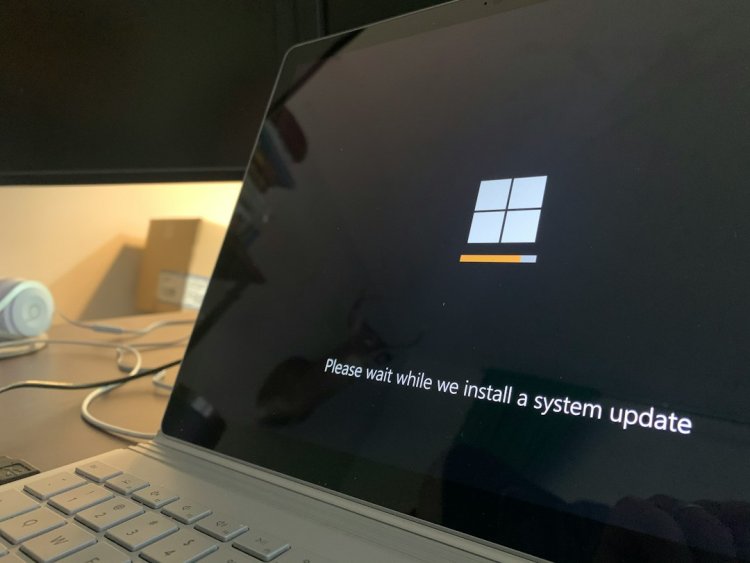
Update ke baad "Preparing Windows. Don't turn off your computer" screen pe PC 2-3 ghante atka hua hai? Darwaza mat band karo abhi — ye screen normal bhi ho sakti hai aur genuinely stuck bhi. Is guide mein pehle samjhenge kaise decide karein wait ya force, phir 6 detailed fixes — har step ke andar sub-steps ke saath.
Table of Contents
- Pehle Samjho — Update Kya Kar Raha Hai
- Step 0 — Normal Ya Stuck? Ye Decide Karo
- Fix 1 — Wait Karo (Sahi Way Se)
- Fix 2 — Force Restart (Sahi Tareeke Se)
- Fix 3 — Safe Mode Mein Boot Karo
- Fix 4 — Startup Repair Chalao
- Fix 5 — SoftwareDistribution Cleanup
- Fix 6 — Update Uninstall Ya System Restore
- Dobara Na Ho — Prevention Tips
- FAQ
- Conclusion
Pehle Samjho — Update Kya Kar Raha Hai
Jab ye screen dikhti hai tab Windows do kaam kar raha hota hai:
- Files copy/extract ho rahi hain naye update ki
- Registry aur system components configure ho rahe hain
Feature updates (22H2, 23H2 jaise bade updates) mein ye 30-90 min normal hai. HDD pe aur zyada — 2 hours bhi ho sakta hai genuinely working state mein.
Step 0 — Normal Ya Stuck? Ye Decide Karo
Force restart se pehle ye check karo — 2 signs:
| Sign | Matlab |
| Disk LED blink ho raha | Update kaam kar raha — WAIT |
| Fan awaaz/disk sound | Active hai — WAIT |
| Screen frozen + zero activity 2+ hours | Stuck hai — Fix 2 |
| "Working on updates X%" likha hai | Progress hai — WAIT |
Rule: Disk activity hai = kabhi bhi mat chhedo. Interrupt karna Windows corrupt kar sakta hai.
Fix 1 — Wait Karo (Sahi Way Se)
Agar disk LED active hai toh wait karo — but sahi way se:
- Charger plug karo (laptop) — battery down hone se update fail hota hai
- Kuch mat dabao — keyboard/mouse touch mat karo
- 45-60 min aur do — bade updates ke liye normal
- Screen dim/sleep ho jaye toh worry mat — process background mein chal raha
- 90 min baad bhi same screen? → Fix 2 pe jao
Fix 2 — Force Restart (Sahi Tareeke Se)
2+ hours + zero disk activity = stuck confirmed. Force karo:
- Power button 10-15 sec hold — PC fully off
- 10 sec wait karo (capacitors discharge)
- Power button press → on
- Ab 2 cheezein hongi:
- Update resume/complete hoga — OK, chalne do
- "Undoing changes" aayega — rollback ho raha, ye bhi normal hai
- "Undoing changes" pe bhi 30-45 min do — interrupt mat karo
⚠️ Kabhi mat karo: mid-copy pe restart — sirf zero-activity stuck pe.
Fix 3 — Safe Mode Mein Boot Karo
Restart ke baad bhi stuck screen wapas aata hai? Safe mode:
- Power button hold → off karo
- On karo — jab Windows logo dikhe power hold → off again
- Ye 3 baar repeat karo (force-crash pattern)
- 4th boot pe "Automatic Repair" screen aayegi
- Troubleshoot → Advanced Options → Startup Settings → Restart
- 4 ya F4 dabao → Safe Mode boot
- Safe mode mein boot ho gaya? → Fix 5 (cleanup) karo
Fix 4 — Startup Repair Chalao
Automatic Repair screen pe hi (Fix 3 steps 1-4):
- Troubleshoot → Advanced Options → Startup Repair
- Windows automatically boot problems scan + fix karega
- 10-30 min lagta hai — chalne do
- "Couldn't repair" aaye toh → Fix 6 (System Restore)
Fix 5 — SoftwareDistribution Cleanup
Corrupt update files delete karna — Safe Mode ya normal CMD admin mein:
net stop wuauserv
net stop bits
net stop cryptsvc
rd /s /q C:\Windows\SoftwareDistribution\Download
rd /s /q C:\Windows\SoftwareDistribution\DataStore
net start wuauserv
net start bits
net start cryptsvc
Kya karta hai:
wuauserv= Windows Update service bandSoftwareDistributionfolder = download cache — corrupt yahi hota hai- Restart pe Windows fresh download karega — clean state
Restart karo → Settings → Windows Update → Check for updates — fresh download start.
Fix 6 — Update Uninstall Ya System Restore
Automatic Repair → Troubleshoot → Advanced Options:
Option A — Uninstall Updates:
- Uninstall Updates select
- "Uninstall latest quality update" pehle try
- Nahi chala → "Uninstall latest feature update"
- Restart — purane working state mein wapas
Option B — System Restore:
- System Restore select
- Recent restore point choose (update se pehle wala)
- Confirm → restore chalne do
- Files safe rehte hain — sirf system state rollback hota hai
Dobara Na Ho — Prevention Tips
- Charger plug rakho laptop pe update ke time
- Active Hours set karo — Settings → Windows Update → Advanced → Active hours
- 15-20GB free disk space rakho always
- Update ke time PC use mat karo — let it finish
- Feature updates manual download karo — Windows Update Assistant se, controlled way mein
FAQ
Q1. "Don't turn off" ke bawajood band karna safe hai?
Zero disk activity + 2 ghante se zyada stuck ho toh generally safe — rollback ho jayega. Early stage mein kabhi mat karo — Windows corrupt ho sakta hai.
Q2. "Undoing changes" screen pe atka hua hai?
Same fixes apply hote hain — 45 min wait karo, force restart, safe mode boot, SoftwareDistribution cleanup. Rollback complete hone do.
Q3. Ye issue kitni baar repeat hoga?
Feature updates (22H2, 23H2) pe common hai — quality updates pe rarely 30 min se zyada. Har chhote update pe stuck = disk ya RAM problem check karo.
Q4. SSD vs HDD mein kitna farak hai?
SSD pe 15-30 min normal hai, HDD pe 60-90+ min ho sakta hai. HDD users ko zyada patience chahiye — disk LED check hi best indicator hai.
Q5. Update kabhi bhi finish nahi hota — permanently kya karun?
Windows Update Assistant se manual update try karo, ya Settings → Recovery → "Reset this PC (Keep files)". Persistent stuck = deeper system issue.
Q6. Battery mein update kar raha tha, band ho gaya — ab kya?
Charger lagao, power on — update usually resume hota hai. Nahi toh "Undoing changes" aayega — uske baad same fixes follow karo.
Q7. Safe Mode mein bhi nahi ja raha?
Automatic Repair → Command Prompt kholo → wahan se SoftwareDistribution commands chalao, ya Startup Repair + System Restore try karo.
Q8. Update ke baad apps/files gayab ho gaye?
Rare — Windows Update sirf system files badalta hai. Check: C:\Windows.old folder mein purani files mil sakti hain. User folder same rehta hai.
Q9. Antivirus/VPN on tha — uski wajah se stuck?
Haan possible — third-party antivirus kabhi-kabhi update block karta hai. Next update se pehle temporarily disable karo.
Q10. Charging port/network issue tha — resume hoga?
Power/network interruption ke baad update usually resume hota hai. Nahi hua toh Settings → Windows Update → "Retry" ya SoftwareDistribution cleanup karo.
Q11. Har month ye hota hai — Windows broken hai?
SFC + DISM scan chalao (system files corrupt), disk health check karo (chkdsk), aur Windows Update Troubleshooter — Settings → Troubleshoot.
Conclusion
"Preparing Windows" stuck = pehle 45-90 min wait (disk LED check), phir force restart → safe mode → SoftwareDistribution cleanup → uninstall update. 90% cases ye sequence solve karta hai — reinstall last option hai. Charger plugged in rakho aur patience — yahi sabse bada fix hai.
TAGS: stuck on preparing windows, preparing windows dont turn off, windows update stuck, update stuck preparing, windows 11 stuck, undoing changes loop, softwaredistribution cleanup, safe mode boot, update rollback, techn trainer
What's Your Reaction?