Keyboard Not Working — 10 Ways to Fix in Windows 11 (Laptop & External)
Keyboard keys kaam nahi kar rahe ya pura dead? 10 ways to fix — filter keys, driver, Fn lock, hardware check — laptop aur external keyboard dono ke solutions.
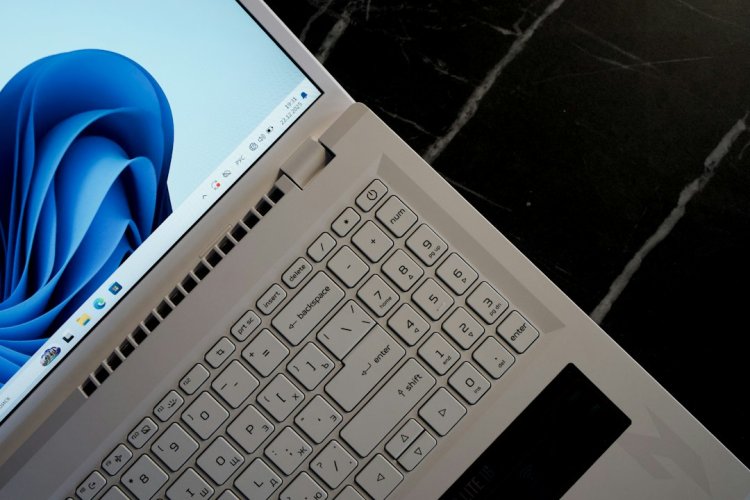
Keyboard Not Working — 10 Ways to Fix (Windows 11)
Keys press ho rahi par type nahi ho raha? Ya poora keyboard dead — laptop ka ya external? 10 fixes — software se hardware tak, order se karo.
Table of Contents
- Fix 1 — Filter Keys OFF
- Fix 2 — Sticky Keys Check
- Fix 3 — Connection Check
- Fix 4 — Driver Reinstall
- Fix 5 — Fn Lock
- Fix 6 — NumLock/ScrollLock
- Fix 7 — On-Screen Keyboard Test
- Fix 8 — Driver Update/Rollback
- Fix 9 — Clean Boot
- Fix 10 — Hardware Damage
- FAQ
- Conclusion
Fix 1 — Filter Keys OFF (#1 Cause)
Settings → Accessibility → Keyboard → Filter Keys → OFF.
Filter Keys on hone pe Windows "quick" presses ignore karta hai — lagta hai keyboard dead hai. Shift key 8 sec dabane se accidentally on ho jata hai — isliye ye sabse common cause hai.
Fix 2 — Sticky Keys Check
Shift 5 baar dabane se Sticky Keys ON ho jata hai:
Settings → Accessibility → Keyboard → Sticky Keys → OFF.
Fix 3 — Connection Check
- USB keyboard → doosra port, doosra PC
- Wireless → battery change, USB receiver reinsert
- Bluetooth → remove device → re-pair
- Laptop → external keyboard test — external chale toh internal hardware issue
Fix 4 — Driver Reinstall
Device Manager → Keyboards → apna keyboard → Uninstall device → restart. Windows auto-reinstall karega — driver corruption fix.
Fix 5 — Fn Lock Check
Laptop pe Fn + Esc ya Fn Lock key — function row lock ho jata hai. Kuch laptops mein Num row bhi band lagti hai. LED indicator dhundo Fn Lock ka.
Fix 6 — NumLock/ScrollLock
- Number pad dead → NumLock dabao
- Arrows Excel mein scroll karte hain → ScrollLock off
- CapsLock on rahe toh sab uppercase — obvious but check
Fix 7 — On-Screen Keyboard Test
Win + Ctrl + O → on-screen keyboard:
- OSK chalta hai → hardware problem physical keyboard mein
- OSK bhi nahi chalta → software problem
Ye ek test se direction clear ho jata hai.
Fix 8 — Driver Update/Rollback
- Manufacturer site se keyboard driver update (Logitech, Dell, HP utility)
- Naya update ke baad problem? → Device Manager → Properties → Roll Back Driver
Fix 9 — Clean Boot
Third-party software (macro tools, remappers, old Logitech software) keyboard block kar sakta hai:
msconfig → Services → Hide Microsoft → Disable all → restart. Clean boot mein chale toh culprit app uninstall.
Fix 10 — Hardware Damage
- Pani/liquid gir gaya → immediately off karo, 48hrs dry
- Keys physically stuck → cleaning (compressed air, brush)
- Laptop keyboard dead → ₹500-1500 replacement ya USB keyboard use
FAQ
Sirf kuch keys kaam nahi karte?
Hardware — keys ke neeche debris, ya row/column ribbon fail. Specific keys dead = hardware.
BIOS mein chalta, Windows mein nahi?
Driver/software issue — OSK test confirm.
Windows mein chalta, ek app mein nahi?
Wo app admin mode mein hai ya app-specific issue — app restart/reinstall.
Pani girne ke baad?
Off → unplug → upside down → 48hrs dry → test. Rice myth mat follow — compressed air better.
Conclusion
Filter Keys + Sticky Keys off — 70% software issues yahi hain. On-screen keyboard test se direction pakka. Physical damage ho toh ₹500-1500 mein external keyboard se kaam chalta hai.
TAGS: keyboard not working, keyboard keys not typing, laptop keyboard not working, filter keys off, sticky keys windows 11, keyboard driver, keys not responding, external keyboard not working, techn trainer
What's Your Reaction?