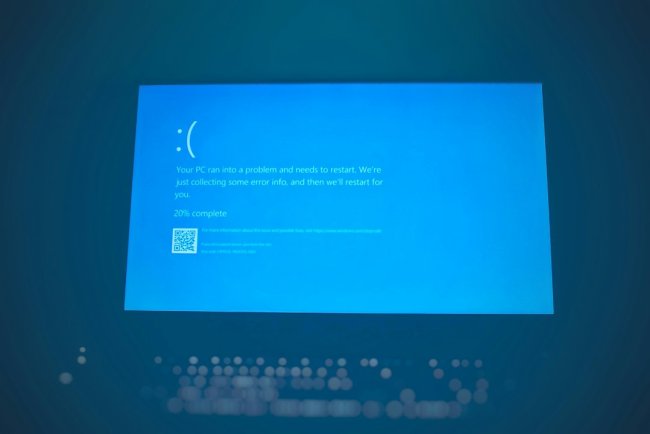
Black Screen After Login — 10 Ways to Fix in Windows 11 (Cursor Only)
Windows 11 login ke baad black screen sirf cursor dikhta hai? 10 ways to fix — explorer restart, App Readiness, fast startup, safe mode — complete guide.
Black Screen After Login — 10 Ways to Fix (Windows 11)
Password daala — poora screen black, sirf mouse cursor dikhta hai? Ye Windows 11 ka common bug hai — explorer process load nahi hota ya graphics driver crash hota hai. 10 fixes order se karo — pehle wale 80% cases solve karte hain.
Table of Contents
- Problem Samjho
- Fix 1 — Explorer Manually Start
- Fix 2 — Explorer Restart
- Fix 3 — App Readiness Service
- Fix 4 — Fast Startup Off
- Fix 5 — Graphics Driver
- Fix 6 — Safe Mode
- Fix 7 — New Account
- Fix 8 — Display Reset (Win+P)
- Fix 9 — Uninstall Update
- Fix 10 — Hardware Check
- FAQ
- Conclusion
Problem Samjho
Login ke baad black screen + cursor = explorer.exe load nahi hua ya graphics driver crash. Cursor dikhta hai matlab Windows chal raha hai — sirf shell/display issue hai.
Fix 1 — Explorer Manually Start
Sabse pehle ye try:
- Ctrl + Shift + Esc → Task Manager kholo (cursor se kaam hota hai)
- File → Run new task
explorer.exetype → OK- Desktop aa jayega instantly — 60% cases yahi solve
Fix 2 — Explorer Restart
Explorer chal raha but hang hai:
- Task Manager → Windows Explorer → right-click → Restart
Fix 3 — App Readiness Service
Windows 11 ka known bug — ye service band ho toh black screen:
- Task Manager → File → Run →
services.msc - App Readiness dhundo → right-click → Start
- Startup type → Automatic karo
Fix 4 — Fast Startup Off
Fast startup hybrid boot — kabhi-kabhi display init fail hota hai:
- Task Manager → File → Run →
control - Power Options → "Choose what power buttons do"
- "Change settings currently unavailable"
- Fast startup uncheck → save → restart
Fix 5 — Graphics Driver Update
Safe mode mein jake:
- Device Manager → Display adapter → Update driver
- Ya manufacturer se latest install karo (NVIDIA/Intel/AMD)
- Black screen often GPU driver crash se aata hai
Fix 6 — Safe Mode
Boot pe bhi black screen? Safe mode mein jao:
- Shift + Restart (login screen pe power icon → Shift+Restart)
- Troubleshoot → Advanced → Startup Settings → Safe Mode
- Safe mode mein normal dikhta? → driver/software issue confirmed
- Wahan se drivers uninstall/update karo
Fix 7 — New Account
User profile corrupt?
net user testuser 123 /add
net localgroup administrators testuser /add
Naye account mein login — chale toh purana profile corrupt hai.
Fix 8 — Display Projection Reset
Second monitor pe output gaya ho:
- Win + P dabao → arrow keys → "PC screen only" → Enter
Fix 9 — Uninstall Update
Update ke baad black screen?
- Safe mode → Settings → Windows Update → History → Uninstall updates
- Latest KB remove → restart
Fix 10 — Hardware Check
- RAM reseat karo (kholo, nikalo, wapas)
- Display cable loose?
- Laptop mein brightness Fn + F-key se badha ke dekho — dim screen black jaisa lagta hai
FAQ
Cursor bhi nahi dikhta?
Graphics driver ya display output issue — external monitor try karo, BIOS mein check.
Login se pehle hi black hai?
Boot issue — Safe Mode ya Startup Repair try karo.
Kaam ke baad suddenly black?
Sleep/display timeout ya GPU overheating — monitor cable check.
Fix 1 se aaya but baar-baar hota hai?
Permanent fix = Fix 3 (App Readiness) + Fix 4 (Fast Startup off) — ye underlying cause hain.
Conclusion
Black screen after login = explorer fail (Fix 1-2) ya App Readiness service (Fix 3). 90% yahi se solve hota hai. Repeat ho toh fast startup off + GPU driver update — permanent solution.
TAGS: black screen after login, black screen cursor only, windows 11 black screen, login ke baad black screen, explorer not loading, app readiness service, black screen fix windows 11, techn trainer
What's Your Reaction?