TPM 2.0 Not Detected? 5 Ways to Enable It (Windows 11)
Windows 11 says TPM 2.0 not detected? 5 ways to enable TPM in BIOS — Intel PTT, AMD fTPM — step-by-step for all motherboards.
TPM 2.0 Not Detected? 5 Ways to Enable It (Windows 11)
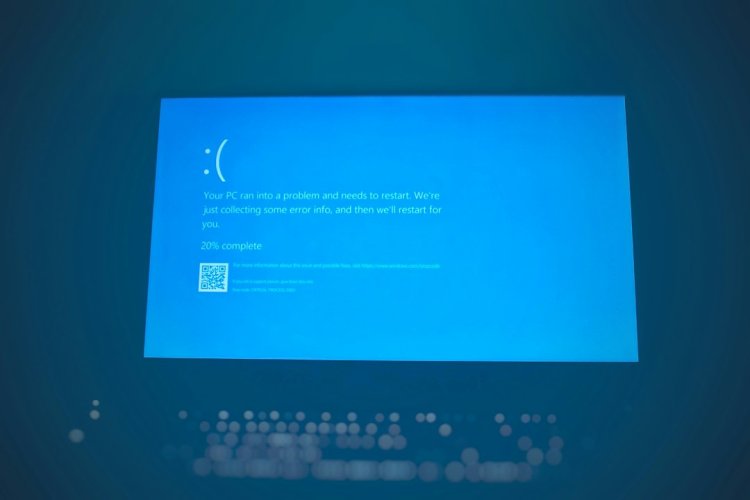
Windows 11 upgrade blocked by "TPM 2.0 not detected"? Your PC almost certainly has TPM — it's just turned off in BIOS. Here's how to find and enable it on any motherboard.
Table of Contents
- What TPM Is (And Why Windows 11 Needs It)
- Fix 1 — Enable TPM in BIOS (Intel PTT)
- Fix 2 — Enable fTPM (AMD Systems)
- Fix 3 — Check TPM Status in Windows
- Fix 4 — Update BIOS Firmware
- Fix 5 — Install a TPM Module (Desktops)
- Workaround — Bypass TPM Check (Last Resort)
- FAQ — 10 Questions
- Conclusion
What TPM Is (And Why Windows 11 Needs It)
TPM (Trusted Platform Module) is a security chip on your motherboard. Windows 11 requires version 2.0 for features like BitLocker and Secure Boot. Most PCs from 2016+ have it built in — just disabled by default.
Fix 1 — Enable TPM in BIOS (Intel PTT)
- Restart → press Del/F2/F10 repeatedly → BIOS
- Go to Advanced → Trusted Computing or Security
- Find Intel PTT (Platform Trust Technology) → set Enabled
- Or look for PTT / TPM / Security Device Support
- F10 → Save & Exit
Fix 2 — Enable fTPM (AMD Systems)
- BIOS → Advanced → AMD fTPM Configuration
- Set AMD CPU fTPM → Enabled
- Or: Security → Trusted Computing → fTPM → Enabled
- Save & Exit (F10)
Fix 3 — Check TPM Status in Windows
After enabling:
Win+R→ typetpm.msc→ Enter- Should show: "TPM is ready for use" + Specification Version 2.0
- Still not detected? Try Fix 4.
Fix 4 — Update BIOS Firmware
Old BIOS may not show TPM options:
- Note your motherboard model (
msinfo32→ BaseBoard) - Download latest BIOS from manufacturer's site
- Flash via BIOS utility — TPM options often appear after update
Fix 5 — Install a TPM Module (Desktops)
Pre-2016 motherboard without PTT/fTPM? Buy a TPM 2.0 module (~$15-25) matching your board brand (ASUS/Gigabyte/MSI) → plug into TPM header → enable in BIOS.
Workaround — Bypass TPM Check (Last Resort)
If your PC truly lacks TPM 2.0:
Win+R→regeditHKEY_LOCAL_MACHINE\SYSTEM\Setup\MoSetup- New DWORD:
AllowUpgradesWithUnsupportedTPMorCPU= 1 - Run Windows 11 setup — installs anyway (at your own risk)
FAQ
Q1. My CPU supports TPM but BIOS doesn't show it?
It may be labeled differently — look for PTT (Intel), fTPM (AMD), or "Security Device".
Q2. Is enabling TPM safe?
Yes — it's a built-in security feature, no downside.
Q3. TPM 1.2 vs 2.0 — difference?
2.0 has stronger encryption algorithms — Windows 11 requires 2.0.
Q4. Laptop has no TPM option?
Most laptops enable it by default — check tpm.msc first before assuming it's off.
Q5. Will bypassing TPM break Windows updates?
Microsoft may block feature updates on unsupported installs — security updates usually still work.
Q6. Does enabling TPM erase data?
No — but if BitLocker is on, suspend it first to avoid recovery key prompt.
Q7. Where is TPM setting in ASUS BIOS?
Advanced → PCH-FW Configuration → PTT → Enabled (Intel) or fTPM (AMD).
Q8. TPM module brand must match motherboard?
Yes — TPM modules are board-specific (ASUS module for ASUS boards, etc.).
Q9. Can I install Windows 11 without TPM at all?
Yes with the registry bypass — but Microsoft warns of missing updates.
Q10. How to check TPM version?
tpm.msc shows "Specification Version" — must say 2.0.
Conclusion
TPM "not detected" almost always means it's disabled in BIOS — enable Intel PTT or AMD fTPM, verify with tpm.msc, and you're ready for Windows 11. Registry bypass is the last resort for truly old hardware.
TAGS: tpm 2.0 not detected, enable tpm windows 11, intel ptt, amd ftpm, tpm.msc, windows 11 tpm requirement, bypass tpm check, techn trainer
What's Your Reaction?